PairDrop guide: send files between devices without installing an app
A practical guide to PairDrop for nearby and remote device transfers, temporary rooms, pairing, limits, and safer sharing habits.
PairDrop is a browser app for sending files and text between devices. Open it on both devices, select the target, approve the transfer, and save the result—without installing a dedicated client or creating an account for the basic workflow.
It is particularly useful when the two devices do not share an ecosystem: an Android phone and a Mac, an iPhone and a Windows laptop, or two computers where messaging yourself would create an unnecessary cloud copy.
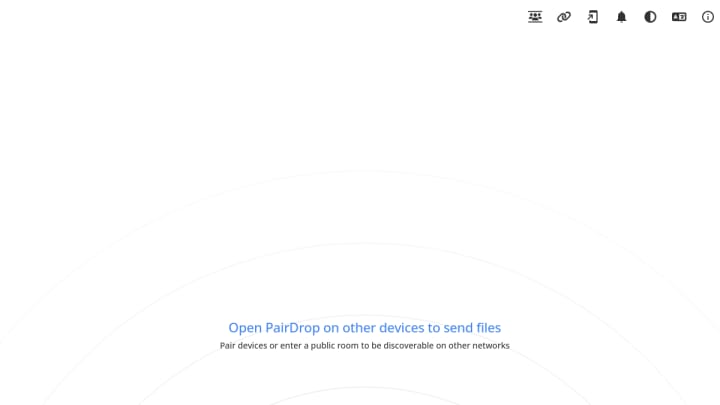
What PairDrop is good at
PairDrop is best for deliberate, person-to-person transfers where both endpoints are present. The PairDrop project documents cross-platform browser sharing, no setup or signup for the core experience, temporary public rooms, persistent device pairing, text messaging, and installable PWA support.
Whimera records PairDrop as free, no-sign-up, and mobile-ready, with purposes of file sharing and collaboration. Local processing is left unknown in the catalog because the available evidence does not justify collapsing every network path into a simple yes/no claim. Files must travel between devices; the relevant questions are how peers find each other and which transfer path the current session uses.
Facts and project documentation were reviewed on August 11, 2026.
The basic same-network workflow
- Connect both devices to the same local network when possible.
- Open PairDrop in a current browser on each device.
- Confirm that the expected device appears, using the displayed device identity rather than guessing.
- Select the device and choose a file or send text.
- Approve the incoming transfer on the receiving device.
- Open the saved file and confirm its name, size, and contents before deleting the source.
This flow is ideal for moving a photo from a phone to a laptop, passing a PDF to a tablet, or sending a short URL across platforms.
Rooms for devices that are not nearby
When devices are not discoverable on the same network, PairDrop can use a temporary public room. Both participants enter the same room, see each other, and initiate the transfer.
Treat a room name or code as a temporary access secret. Share it through a separate channel, confirm the other participant’s identity, and leave the room after the transfer. Do not use a predictable room for confidential files.
Pairing devices you use repeatedly
PairDrop also documents persistent device pairing. This is useful for your own phone and computer because paired devices can recognize each other across different networks without recreating a room each time.
Pair only devices you control or intentionally trust. Remove pairings from shared, sold, or lost devices, and review browser-site data before assuming an old relationship disappeared automatically.

PairDrop compared with common alternatives
| Method | Strongest advantage | Main tradeoff |
|---|---|---|
| PairDrop | Cross-platform, browser-based direct sharing | Both endpoints usually need to be present and connected |
| Emailing yourself | Familiar and asynchronous | Attachment limits and an extra cloud/mailbox copy |
| Cloud drive | Good for durable access and larger workflows | Upload time, storage organization, and account dependency |
| USB cable | Predictable offline path | Cable, drivers, ports, and device file-access friction |
| Ecosystem sharing | Excellent when every device is compatible | Weaker across operating-system boundaries |
PairDrop is not a replacement for backups or a team document repository. It is a transfer surface: useful for moving something now, not for keeping the authoritative copy available later.
Practical limits to expect
Browser transfers depend on the device, browser, network, sleep settings, and file size. If a large transfer fails:
- keep both pages visible and devices awake;
- move both devices onto a stable network;
- disable aggressive battery-saving for the duration of the transfer;
- try one file at a time;
- verify that browser or network policy is not blocking the connection;
- use a cable or approved cloud service when reliability matters more than convenience.
On managed work or school networks, peer connectivity may be restricted. Do not attempt to bypass organizational controls; use the sanctioned transfer path.
Safer file-sharing habits
No convenient transfer tool removes the need to verify the recipient and the file.
- Confirm the target device before sending.
- Approve only transfers you expect.
- Scan or inspect unfamiliar files before opening them.
- Avoid sending credentials or private keys as ordinary files or text.
- Use an encrypted archive through an approved method when the sensitivity requires it, and share the password separately.
- Compare a checksum for important or high-value transfers when practical.
- Keep a separate backup until the received copy is verified.
The PairDrop repository is the primary public source for its architecture and features; review the current project documentation for security-sensitive decisions. A Whimera listing is a discovery aid, not a security certification.
When PairDrop is the right choice
Choose PairDrop when the endpoints are known, the transfer is immediate, and installing software would be disproportionate. It shines at crossing platform boundaries with minimal ceremony.
Choose a cloud drive when the file must remain available asynchronously, versioned, or shared with a larger group. Choose a cable or approved offline workflow when the network is untrusted or policy requires it.
Open the PairDrop listing on Whimera for recorded facts and source freshness. For a visual collaboration tool built around an equally simple shareable link, compare CNVS in our online whiteboards guide.