Photopea guide: when a full image editor in your browser makes sense
A practical Photopea guide covering layers, file handling, local processing, mobile use, limits, and the workflows it suits best.
Photopea is an advanced image editor that runs in a web browser. It can handle a quick resize, but its real appeal is that it also provides the concepts people expect from a serious design workspace: layers, masks, selections, blending, text, vector shapes, smart objects, filters, and broad file-format support.
That makes it unusually capable for a browser app—and also means it is not the right answer to every image task. This guide explains where Photopea fits, what its own documentation says about file processing, and when a smaller tool will get you to the result faster.
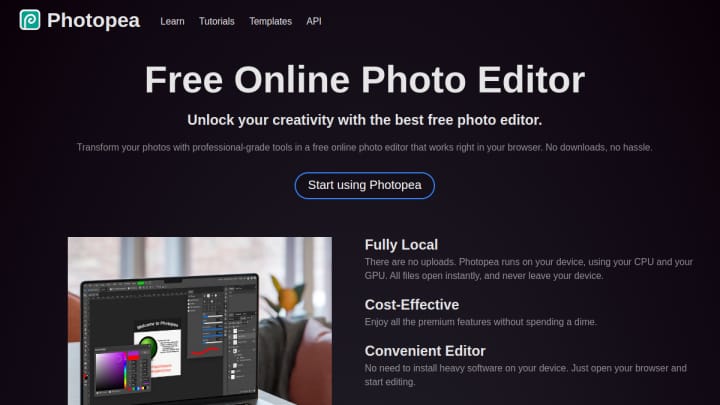
Photopea in one paragraph
Use Photopea when the structure of the image matters. If you need to open a layered document, isolate part of a photo, edit text without flattening it, apply a mask, place artwork into a mockup, or preserve an editable source, Photopea is a strong browser-based option. If you only need compression, a background cutout, or a code card, use a specialist app instead.
Whimera currently records Photopea as freemium with an optional account, mobile support, advertising in the free experience, and local processing. Those facts were checked against public Photopea information on August 11, 2026.
What the editor can do
Photopea’s official learning center covers both raster and vector work. Its documented feature areas include:
- layers, masks, layer styles, and smart objects;
- selections, refine-edge workflows, channels, and brush tools;
- text, vector graphics, shapes, artboards, guides, and snapping;
- adjustments, filters, color spaces, and multiple color depths;
- actions, scripts, variables, animation, slices, and other advanced tools.
The range matters less as a checklist than as evidence of the intended workflow. Photopea is built for multi-step editing where you may return to an earlier decision—not just for applying a filter and downloading a flattened result.
A sensible first workflow
The interface is dense, so start with a small job:
- Open an image or layered document from your device.
- Duplicate the important source layer before destructive changes.
- Use a selection or mask to isolate the area you want to change.
- Add adjustments on separate layers when possible.
- Save an editable source if you may need to revise the design.
- Export a delivery format such as PNG, JPEG, or SVG only after the working file is safe.
This “source first, export second” habit prevents a common mistake: finishing the edit, downloading only a flattened image, and discovering later that the text, mask, or composition needs one more change.
Files and privacy: what Photopea says
Photopea’s privacy policy says files opened in the editor are processed on the device and are not uploaded by Photopea. The learning center also says the editor can continue to work after the site is loaded and the device disconnects from the internet.
There are important boundaries:
- Logging in stores account-related information on Photopea’s server.
- Optional cloud-storage integrations transfer files between the device and the chosen storage provider.
- Closing the editor without saving can lose unsaved work because the working file is not automatically stored for you on Photopea’s servers.
- Local file processing is a product claim, not an independent audit of every request, advertisement, extension, or future version.
For ordinary creative work, this model can be convenient. For confidential, regulated, or contract-restricted files, confirm the current policy and use the workflow approved by your organization.
When Photopea is the best fit
Editing a layered design
Photopea is a natural browser option when someone sends a layered asset and you need to change copy, replace an image, adjust a mask, or preserve editability. Check fonts and smart-object behavior before promising perfect round-trip fidelity; complex documents can depend on resources that are not available in the browser.
Creating social and marketing graphics
Layers, text, shapes, masks, and export controls make it suitable for campaign graphics and social variants. Create one clean master, keep safe margins, then duplicate or resize for each placement.
Retouching and compositing
Selections, brushes, blending, and adjustments support much deeper work than a one-click editor. The limiting factor is usually not the feature list but the comfort and performance of the device.
Working away from your main computer
Because the editor is browser-based, it can be useful on a borrowed or secondary machine when installing a desktop application is not practical. Avoid leaving files behind, and review download and browser-storage behavior on shared devices.
Mobile and performance expectations
Photopea says it can run on desktop computers, laptops, tablets, and phones, while recommending a large screen, accurate pointer, and keyboard for the best experience. That is the right expectation: mobile support makes urgent edits possible, but a phone is not an equally comfortable replacement for a wide canvas and keyboard shortcuts.
Large documents, many layers, high bit depth, complex filters, and limited device memory can also affect performance. Close unnecessary tabs, save checkpoints, and consider reducing the working dimensions when the final output does not require the original resolution.
When to choose another browser app
- Choose Squoosh when the image is finished and only needs compression.
- Choose Remove.Live when the main task is a fast automatic background cutout.
- Choose SVGOMG when the source is already an SVG and you want to optimize its markup.
- Choose JS Paint when a simple drawing and annotation surface is preferable to a professional workspace.
- Choose Ray.so when the source is code and the output is a presentation image.
Our best browser-based image editors comparison puts those choices side by side.
The bottom line
Photopea is compelling because it keeps a serious, layer-based editing model inside a URL. Its strength is not that it makes every image job effortless; it is that it preserves the structure needed for careful work without requiring a desktop installation.
Open the Photopea listing on Whimera to see the catalog evidence and current fact freshness, then check Photopea’s own documentation before relying on a feature or policy for important work.