6 best browser-based image editors for quick creative work
Compare Photopea, Squoosh, Remove.Live, JS Paint, SVGOMG, and Ray.so by the image job each browser app handles best.
The best online image editor is not always the one with the most tools. It is the one that matches the job in front of you: repairing a layered design, shrinking a hero image, removing a background, optimizing an SVG, or turning a code sample into something presentable.
This guide compares six browser apps in the Whimera catalog. We selected them for distinct workflows, useful free access, and publicly documented capabilities—not because one editor can replace all the others. Information was checked against product documentation and project repositories on August 11, 2026. None of the placements are sponsored.
The short answer
| App | Best for | Account needed? | Local processing recorded by Whimera? |
|---|---|---|---|
| Photopea | Layered photo and design work | Optional | Yes |
| Squoosh | Comparing image compression settings | No | Yes |
| Remove.Live | Fast background removal | No | Yes |
| JS Paint | Simple drawing and classic Paint workflows | Unknown | Yes |
| SVGOMG | Reducing SVG markup and file size | Unknown | Unknown |
| Ray.so Code Images | Exporting polished code screenshots | No | Unknown |
Use Photopea when the source file has layers or needs careful retouching. Use Squoosh when the edit is really an export decision. Choose Remove.Live for a one-purpose cutout workflow, SVGOMG for vector cleanup, JS Paint for uncomplicated pixel editing, and Ray.so when the “image” begins as code.
1. Photopea: best full image editor in a browser
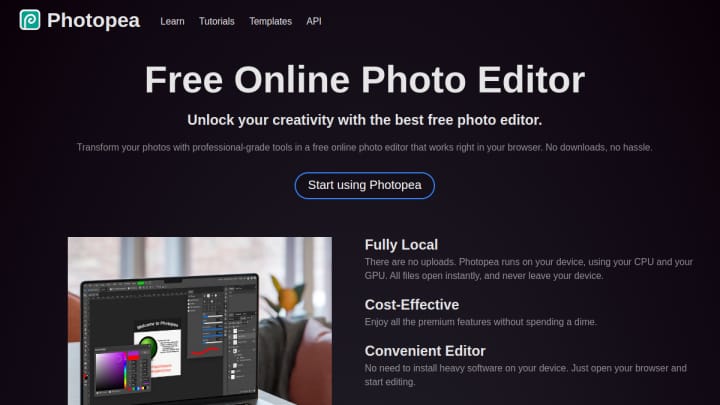
Photopea is the broadest editor in this group. Its official learning center describes support for raster and vector graphics, layers, masks, smart objects, text, selections, filters, and multiple color depths. The interface will feel familiar to people who have used a desktop layer-based editor.
That breadth makes Photopea a strong choice for PSD-like work, social graphics, mockups, and edits that require more than crop-and-export. It runs on phones and tablets, although Photopea itself recommends a large screen, keyboard, and precise pointer for comfortable work.
There is a free experience, an optional account, advertising, and a paid Premium option. Photopea’s privacy policy says opened files are processed on the device and are not uploaded by the editor. Optional cloud-storage access is a separate path, so read the policy before connecting an account.
Choose it when: you need layers, masks, selections, text, or format compatibility. For a closer look, read our Photopea browser editor guide.
2. Squoosh: best for image compression
Squoosh is deliberately narrower. Drop in an image, compare the original and processed versions, adjust dimensions and codec settings, and watch the resulting file size change. That side-by-side feedback is particularly useful when preparing website images because it makes the quality-versus-weight tradeoff visible.
The open-source Squoosh project says compression happens locally in the browser. It also notes that analytics can collect basic visitor information and before-and-after file-size values, which is a useful reminder that “local image processing” does not necessarily mean “no network activity of any kind.”
Choose it when: the picture already looks right and only needs to load faster.
3. Remove.Live: best for removing a background quickly
Remove.Live focuses on one high-frequency job: separating a subject from its background. Its product page documents JPEG, PNG, and WebP input up to 50 MB, full-resolution PNG or JPEG export, and adjustments for brightness, contrast, saturation, blur, and sharpening.
The service says its model runs in the browser through WebAssembly and that images stay on the device. It also says the app can continue offline after the model has loaded. Those are product claims rather than an independent security audit, but they clearly describe the intended workflow.
Choose it when: you need a transparent product photo, profile cutout, sticker, or slide asset without learning a selection tool.
4. JS Paint: best for simple drawing
JS Paint recreates the directness of classic Microsoft Paint: open an image, use familiar drawing tools, and save the result. The project’s about page documents phone support and an installable PWA in addition to the desktop browser experience.
It is a better fit than a full editor when the job is annotation, pixel-level play, a quick crop, or a deliberately nostalgic visual. The interface also makes it approachable for people who do not need a professional layer system.
Choose it when: simplicity is a feature, not a limitation.
5. SVGOMG: best for SVG optimization
SVG files are code as well as images. SVGOMG exposes SVGO optimization options through a visual browser interface, letting you preview the result while removing unnecessary metadata and simplifying markup. That makes it useful for logos, icons, and illustrations headed for a website.
The important habit is to inspect the preview after optimization. Aggressive cleanup can change identifiers or structure that another stylesheet or script expects.
Choose it when: your source is SVG and the goal is cleaner, smaller markup.
6. Ray.so: best for code images
Ray.so turns a pasted code snippet into a styled, shareable image. It is not a general photo editor, and that focus is exactly why it is useful: choose the presentation, adjust the framing, and export without building a layout from scratch.
Choose it when: documentation, a launch post, or a social update needs a readable code visual. Keep an accessible text version beside the image whenever the code itself matters.
How to choose without overthinking it
Start with the output you need:
- A layered working file: Photopea.
- A smaller web image: Squoosh.
- A transparent cutout: Remove.Live.
- A quick sketch or annotation: JS Paint.
- A leaner SVG: SVGOMG.
- A polished code card: Ray.so.
For sensitive or regulated material, do more than rely on a product-page claim. Review the current privacy terms, observe network behavior where appropriate, and follow your organization’s approved workflow. Whimera’s “local processing” field records documented behavior; it is not a security certification.
Explore every listing in Whimera Discover, or continue with our guide to the best browser tools for developers.